

Prerequisites
- Python installed
- Prefect installed
- Authenticated to a Prefect Cloud workspace
- A work pool set up to handle the deployments
Create an automation
On the Automations page, select the + icon to create a new automation. You’ll be prompted to configure:- A trigger condition that causes the automation to execute.
- One or more actions carried out by the automation.
- Details about the automation, such as a name and description.
Manage automations
The Automations page provides an overview of all configured automations for your workspace.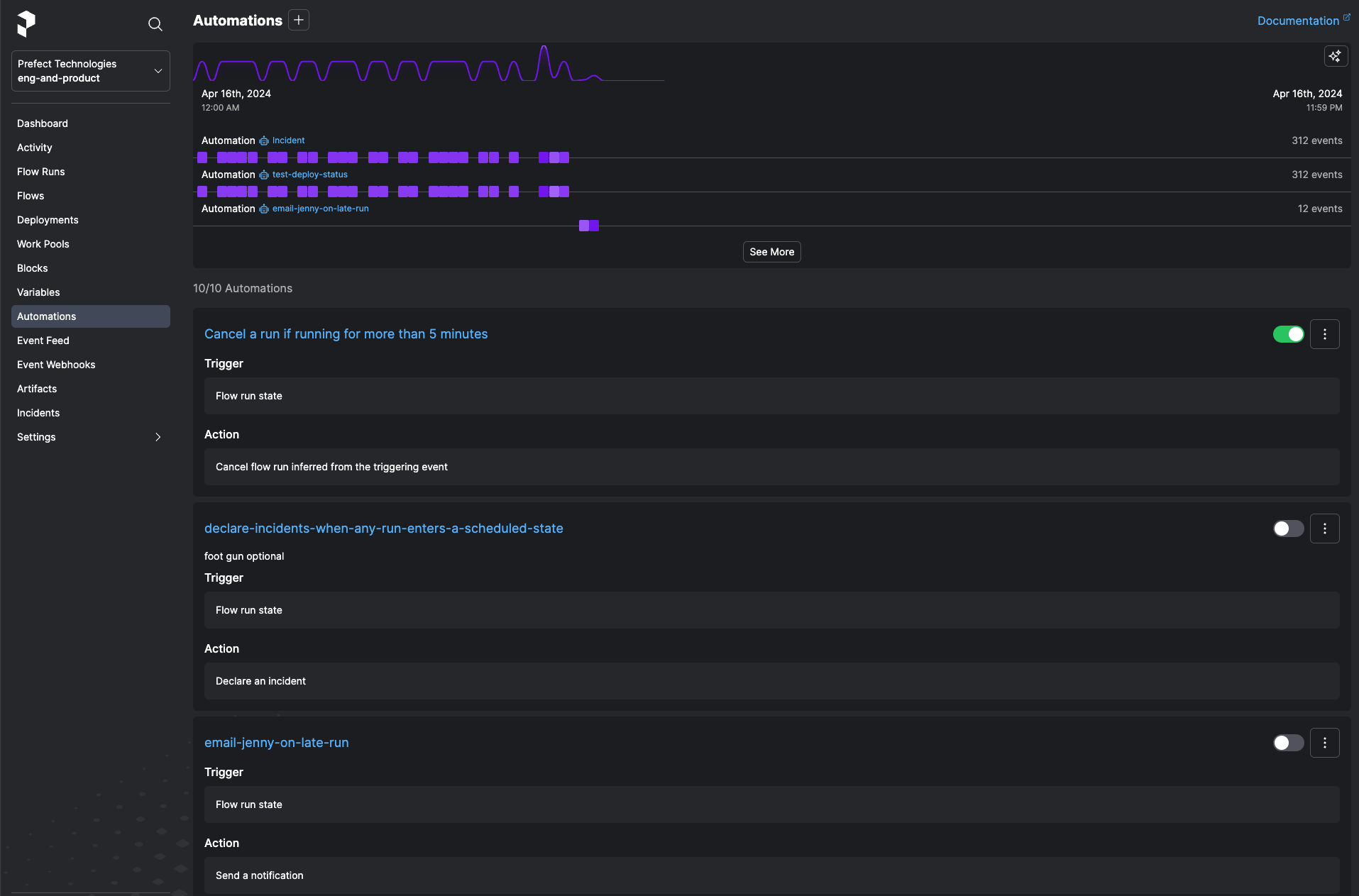 Select the toggle next to an automation to pause execution of the automation.
The button next to the toggle provides commands to copy the automation ID, edit the automation, or delete the automation.
Select the name of an automation to view Details about it and relevant Events.
Select the toggle next to an automation to pause execution of the automation.
The button next to the toggle provides commands to copy the automation ID, edit the automation, or delete the automation.
Select the name of an automation to view Details about it and relevant Events.
Triggers
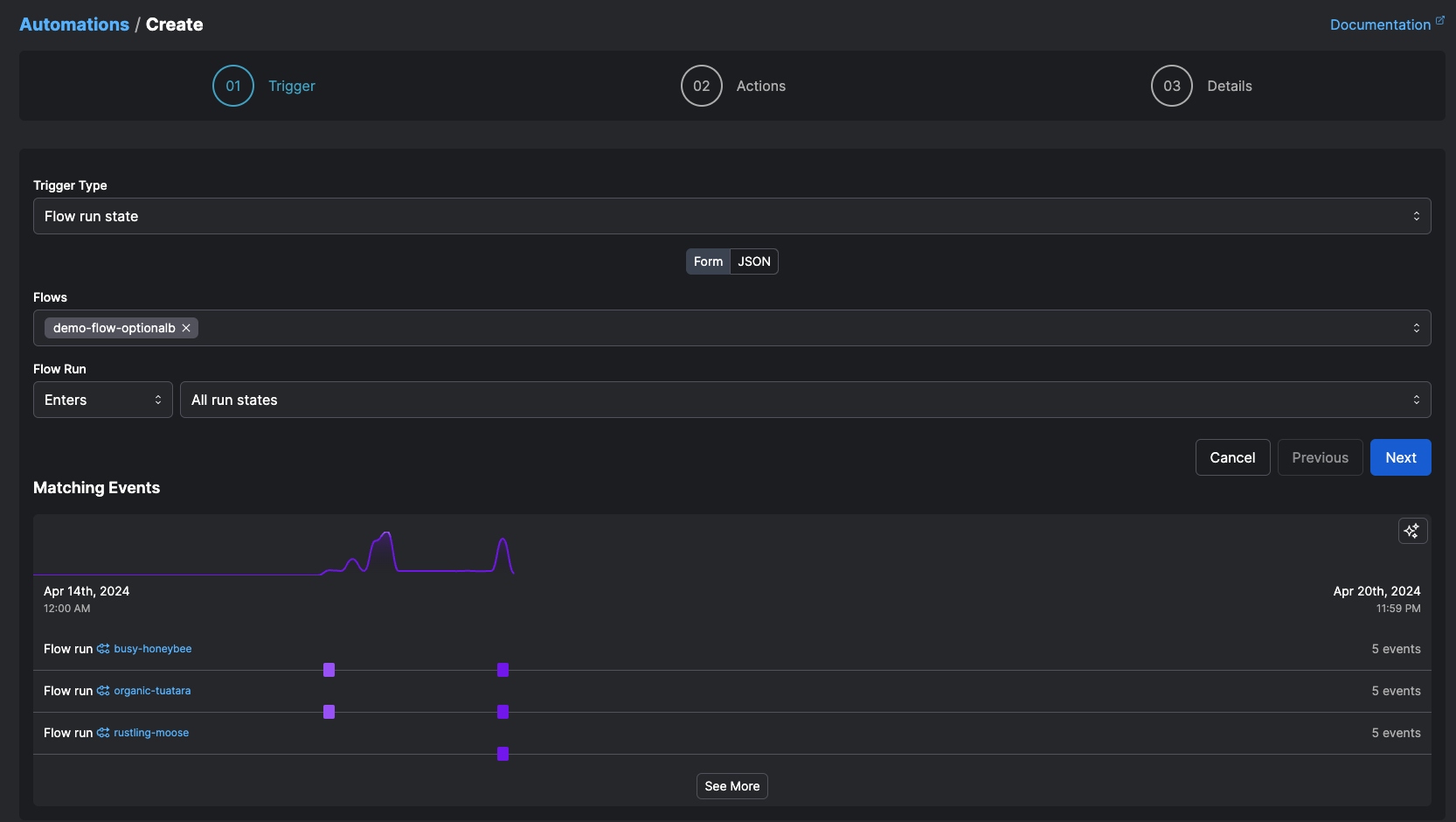
Triggers specify the conditions under which your action should be performed. The Prefect UI includes templates for many common conditions, such as:- Flow run state change (Flow Run Tags are only evaluated with
ORcriteria) - Work pool status
- Work queue status
- Deployment status
- Metric thresholds, such as average duration, lateness, or completion percentage
- Incident declarations (available on Pro and Custom plans)
- Custom event triggers
Automations APIThe automations API enables further programmatic customization of
trigger and action policies based on arbitrary events.
 For example, in the case of flow run state change triggers, you might expect production flows to finish in no longer
than thirty minutes. But transient infrastructure or network issues could cause your flow to get “stuck” in a running state.
A trigger could kick off an action if the flow stays in a running state for more than 30 minutes.
This action could be taken on the flow itself, such as cancelling or restarting it. Or the action could take the form of a
notification for someone to take manual remediation steps. Or you could set both actions to take place when the trigger occurs.
For example, in the case of flow run state change triggers, you might expect production flows to finish in no longer
than thirty minutes. But transient infrastructure or network issues could cause your flow to get “stuck” in a running state.
A trigger could kick off an action if the flow stays in a running state for more than 30 minutes.
This action could be taken on the flow itself, such as cancelling or restarting it. Or the action could take the form of a
notification for someone to take manual remediation steps. Or you could set both actions to take place when the trigger occurs.
Actions
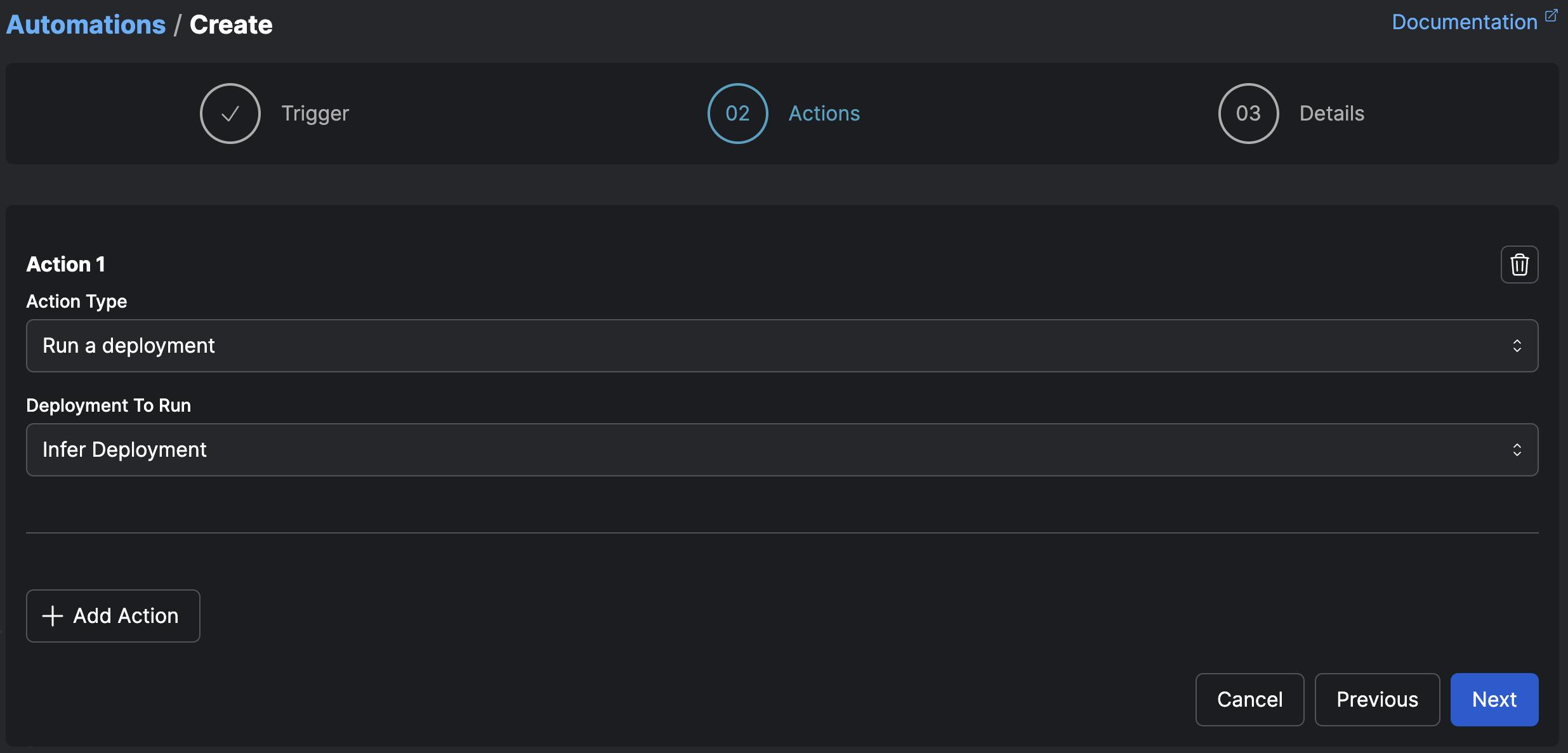
Actions specify what your automation does when its trigger criteria are met. Current action types include:- Cancel a flow run
- Pause or resume a schedule
- Run a deployment
- Pause or resume a deployment schedule
- Pause or resume a work pool
- Pause or resume a work queue
- Pause or resume an automation
- Send a notification
- Call a webhook
- Suspend a flow run
- Declare an incident (available on Pro and Custom plans)
- Change the state of a flow run
Create automations In Python code
You can create and access any automation with the Python SDK’sAutomation class and its methods.
Selected and inferred action targets
Some actions require you to either select the target of the action, or specify that the target of the action should be inferred. Selected targets are simple and useful for when you know exactly what object your action should act on. For example, the case of a cleanup flow you want to run or a specific notification you want to send. Inferred targets are deduced from the trigger itself. For example, if a trigger fires on a flow run that is stuck in a running state, and the action is to cancel an inferred flow run—the flow run that caused the trigger to fire. Similarly, if a trigger fires on a work queue event and the corresponding action is to pause an inferred work queue, the inferred work queue is the one that emitted the event. Prefect infers the relevant event whenever possible, but sometimes one does not exist. Specify a name and, optionally, a description for the automation.Create an automation with deployment triggers
To enable the simple configuration of event-driven deployments, Prefect provides deployment triggers—a shorthand for creating automations that are linked to specific deployments to run them based on the presence or absence of events. Trigger definitions for deployments are supported inprefect.yaml, .serve, and .deploy. At deployment time,
specified trigger definitions create linked automations triggered by events matching your chosen
grammar. Each trigger definition may include a jinja template
to render the triggering event as the parameters of your deployment’s flow run.
Define triggers in prefect.yaml
You can include a list of triggers on any deployment in a prefect.yaml file:
external.resource.pinged event and an external.resource.replied
event have been seen from my.external.resource:
Define triggers in .serve and .deploy
To create deployments with triggers in Python, the trigger types DeploymentEventTrigger,
DeploymentMetricTrigger, DeploymentCompoundTrigger, and DeploymentSequenceTrigger can be imported
from prefect.events:
Pass triggers to prefect deploy
You can pass one or more --trigger arguments to prefect deploy as either a JSON string or a
path to a .yaml or .json file.
triggers.yaml file could have many triggers defined:
test-deployment after running prefect deploy.
Note that deployment triggers contribute to the total number of automations in your workspace.
Sending notifications with automations
Automations support sending notifications through any predefined block that is capable of and configured to send a message, including:- Slack message to a channel
- Microsoft Teams message to a channel
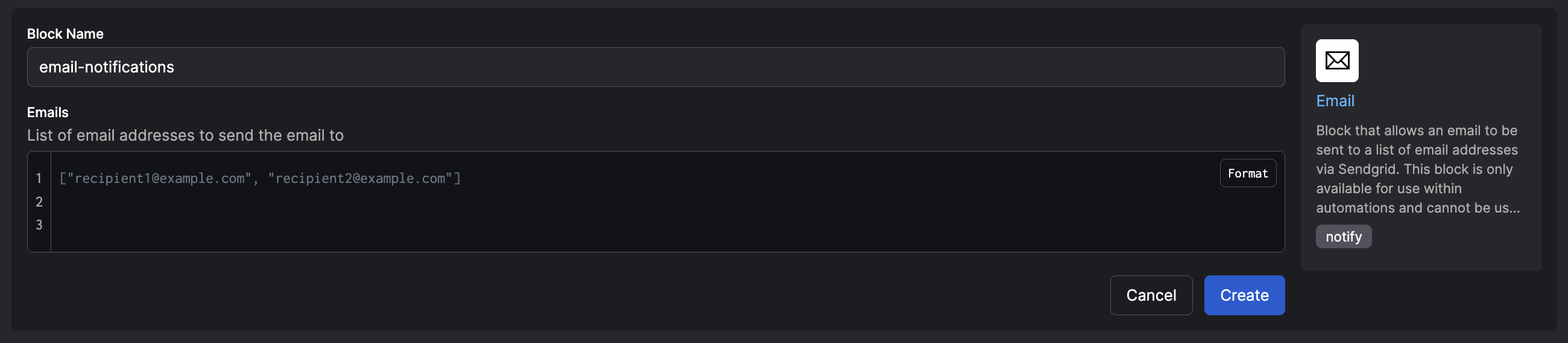
- Email to an email address
Templating with Jinja
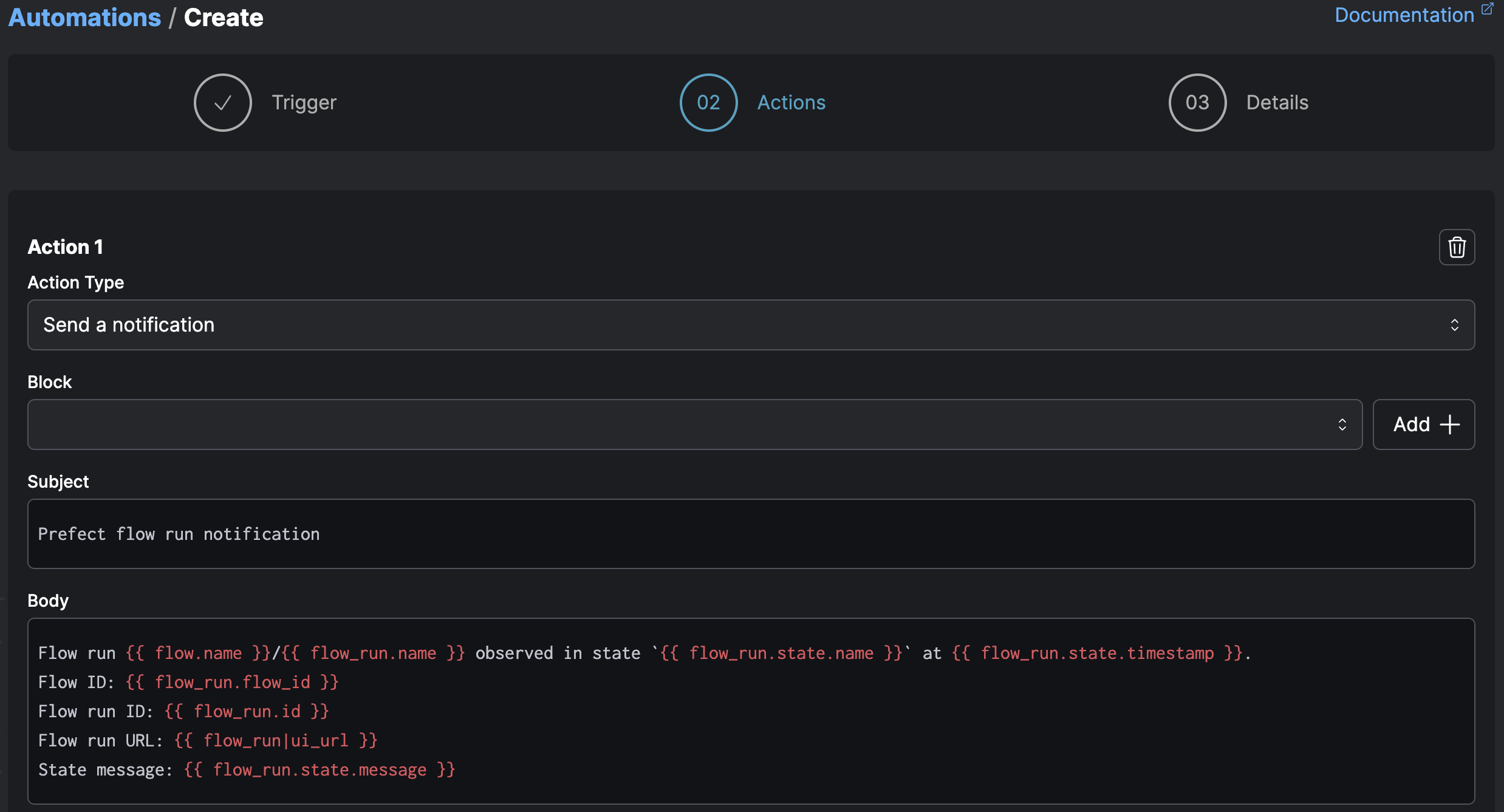
You can access templated variables with automation actions through Jinja syntax. Templated variables enable you to dynamically include details from an automation trigger, such as a flow or pool name. Jinja templated variable syntax wraps the variable name in double curly brackets, like this:{{ variable }}.
You can access properties of the underlying flow run objects including:
In addition to its native properties, each object includes an id along with created and updated timestamps.
The flow_run|ui_url token returns the URL to view the flow run in Prefect Cloud.
Here’s an example for something relevant to a flow run state-based notification:
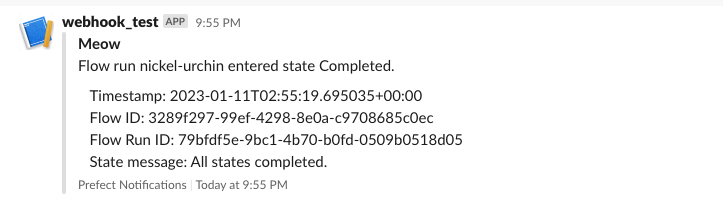 You could include
 flow and deployment properties:
work_pool properties:
API example
This example grabs data from an API and sends a notification based on the end state.Create the example script
Start by pulling hypothetical user data from an endpoint and then performing data cleaning and transformations. First create a simple extract method that pulls the data from a random user data generator endpoint:Create a notification block in the UI
Next, send a notification based off a completed state outcome. Configure a notification that shows when to look into your workflow logic.-
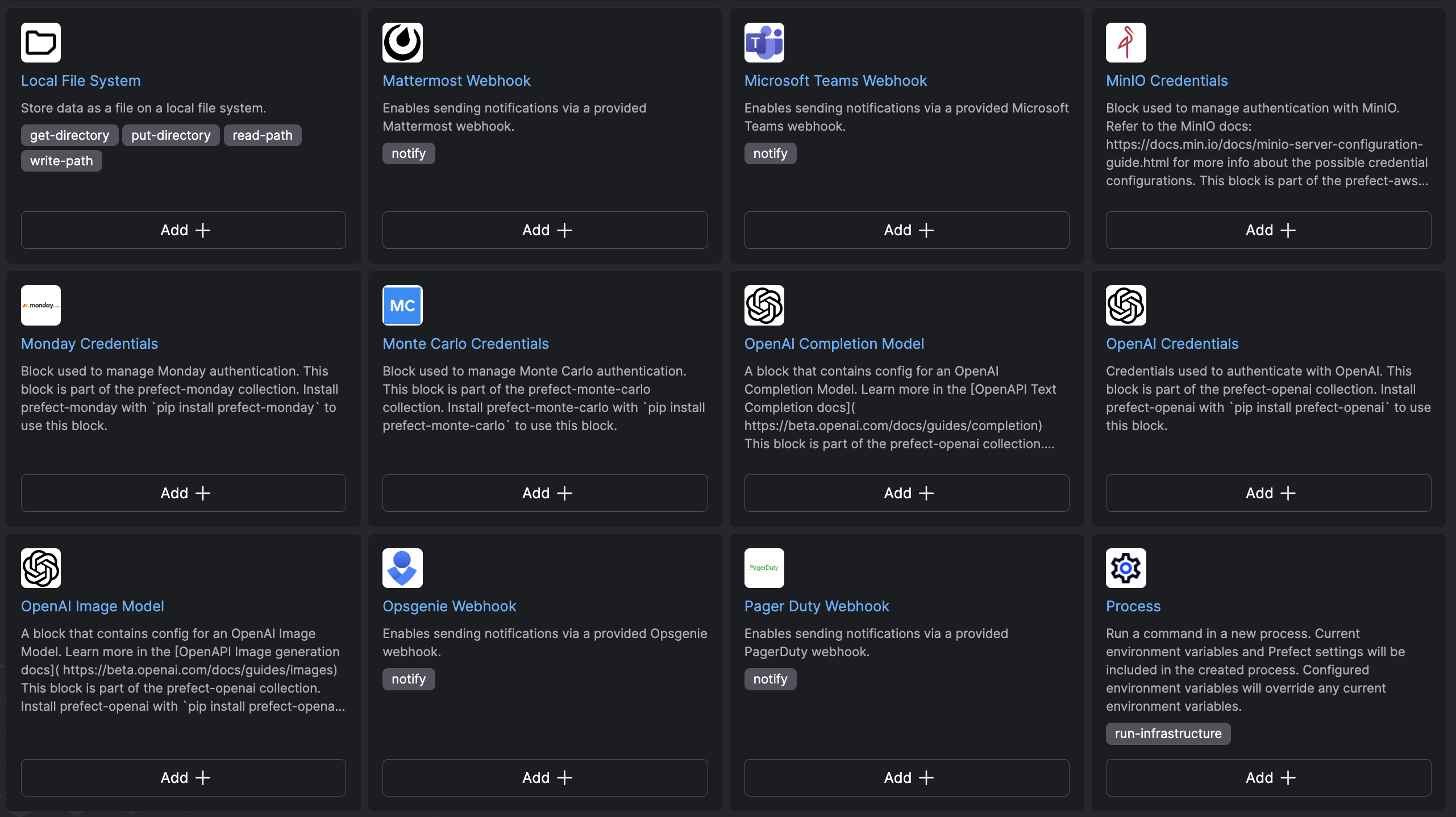
Prior to creating the automation, confirm the notification location. Create a notification block to help define where
the notification is sent.
-
Navigate to the blocks page on the UI, and click into creating an email notification block.
-
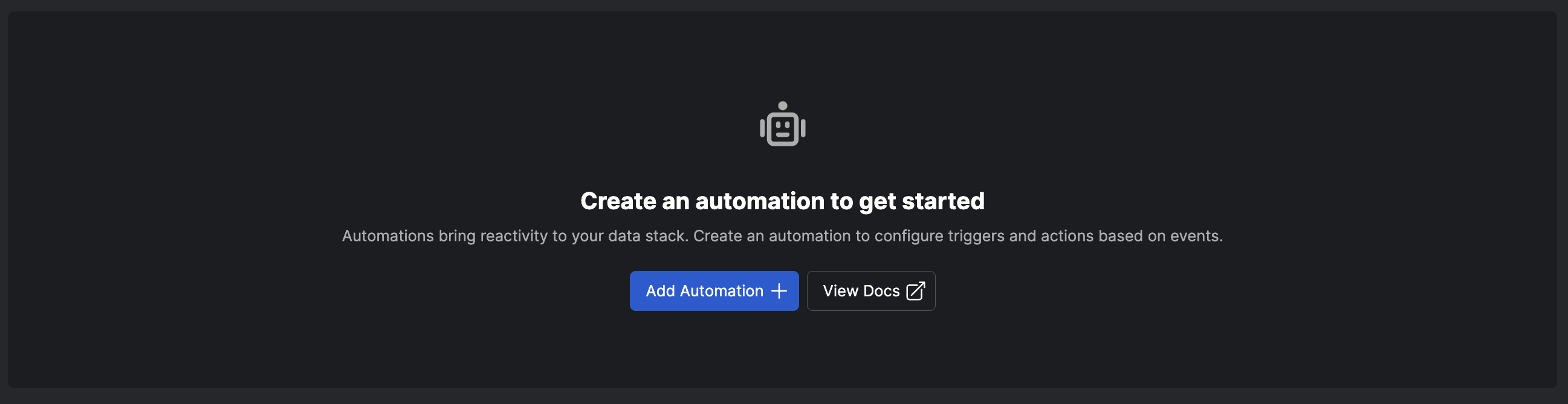
Go to the automations page to create your first automation.
-
Next, find the trigger type. In this case, use a flow completion.

-
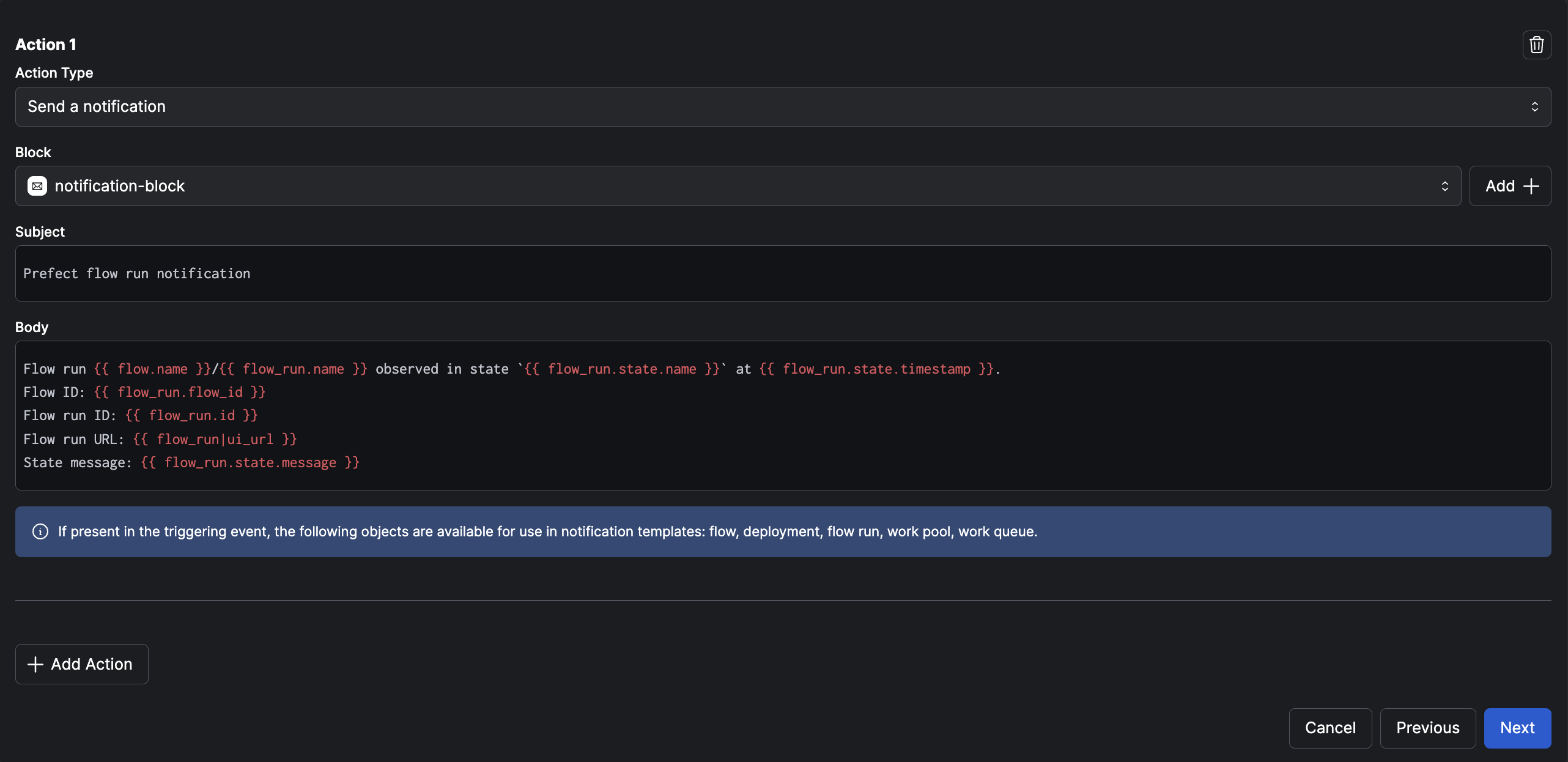
Create the actions for when the trigger is hit. In this case, create a notification to showcase the
completion.
-
Now the automation is ready to be triggered from a flow run completion. Run the file locally and see that the
notification is sent to your inbox after the completion. It may take a few minutes for the notification to arrive.

Event-based deployment automation
Create an automation to kick off a deployment instead of a notification. Explore how to programmatically create this automation with Prefect’s REST API. See the REST API documentation as a reference for interacting with the Prefect Cloud automation endpoints. Create a deployment to kick off some work based on how long a flow is running. For example, if thebuild_names flow
takes too long to execute, you can kick off a deployment with the same build_names flow, but replace the count value
with a lower number to speed up completion.
Create a deployment with a prefect.yaml file or a Python file that uses flow.deploy.
- prefect.yaml
- .deploy
Create a
prefect.yaml file like this one for our flow build_names:deployment_id from this deployment with the CLI and embed it in your automation.
api_key, account_id, and workspace_id.
build_names.
You can see this new deployment get initiated with the custom parameters outlined above.
In a few quick changes, you can programmatically create an automation that deploys workflows with custom parameters.
Use an underlying .yaml file
You can take this a step further by using your own .yaml version of the automation, and registering that file with the UI. This simplifies the requirements of the automation by declaring it in its own .yaml file, and then registering that .yaml with the API. First start with creating the .yaml file to house the automation requirements:automation.yaml
Kick off an automation with a custom webhook
Use webhooks to expose the events API. This allows you to extend the functionality of deployments and respond to changes in your workflow. By exposing a webhook endpoint, you can kick off workflows that trigger deployments, all from an event created from an HTTP request. Create this webhook in the UI to create these dynamic events. Each webhook corresponds to a custom event created where you can react to it downstream with a separate deployment or
automation.
For example, you can create a curl request that sends the endpoint information such as a run count for your deployment:
Each webhook corresponds to a custom event created where you can react to it downstream with a separate deployment or
automation.
For example, you can create a curl request that sends the endpoint information such as a run count for your deployment:
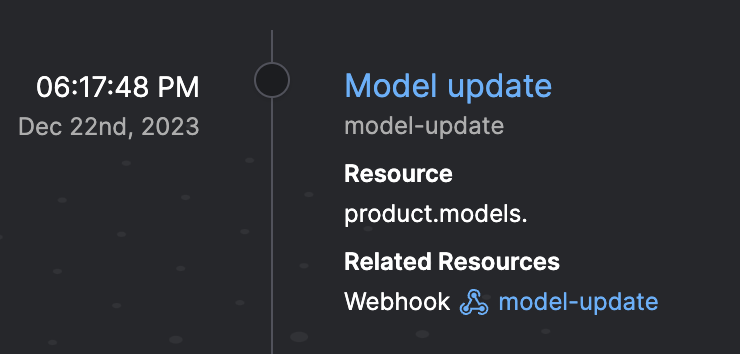 Go into the event feed to automate straight from this event:
 This allows you to create automations that respond to these webhook events. From a few clicks in the UI, you can
associate an external process with the Prefect events API that can trigger downstream deployments.
This allows you to create automations that respond to these webhook events. From a few clicks in the UI, you can
associate an external process with the Prefect events API that can trigger downstream deployments.
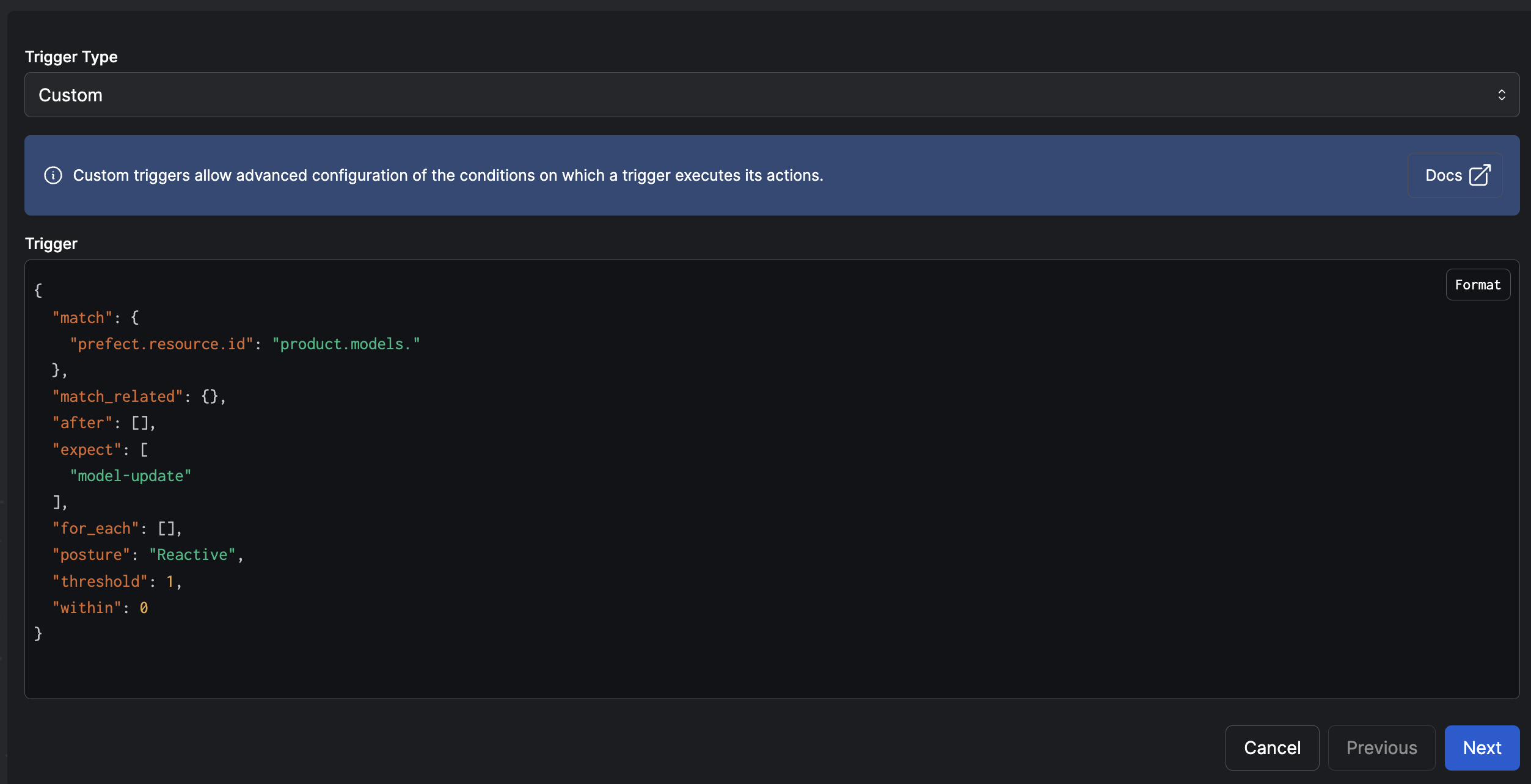
Use triggers
Explore event triggers that automate the kickoff of a deployment run. You can create a deployment that triggers when a flow run takes longer than expected.Use the Marvin library
Take advantage of Prefect’s Marvin library that uses an LLM to classify the data. You can use Marvin’s AI functions to make the dataset more information rich. Install Marvin withpip install marvin and set your OpenAI API key.
You can add a trigger to run a deployment in response to a specific event.
Here’s an example with Marvin’s AI functions. It will take in a Pandas DataFrame and use the AI function to analyze it.
Here is an example of pulling in that data and classifying using Marvin AI. The dummy data is based on classifications you have already created.
prefect.yaml file. Specify what to trigger when the event stays in a
running state for longer than 30 seconds.
See also
- To learn more about Prefect events, which can trigger automations, see the events docs.
- See the webhooks guide to learn how to create webhooks and receive external events.