> ## Documentation Index
> Fetch the complete documentation index at: https://prefect-bd373955-pytest-markdown.mintlify.site/llms.txt
> Use this file to discover all available pages before exploring further.
# Log run activity
> Capture fine-grained information about flows and tasks for monitoring, troubleshooting, and auditing.
Prefect captures logs for your flow and task runs by default, even if you have not started a
Prefect server with `prefect server start`. View and filter logs in the UI or
access log records through the API.
When you run a flow, Prefect automatically logs events for flow runs and task runs, along with any custom
log handlers you have configured. No configuration is needed to enable Prefect logging.
For example, if you create a simple flow in `flow.py` and a local flow run with `python flow.py`, you'll
see an example of the log messages created automatically by Prefect:
```bash
16:45:44.534 | INFO | prefect.engine - Created flow run 'gray-dingo' for flow
'hello-flow'
16:45:44.598 | INFO | Flow run 'gray-dingo' - Created task run 'hello-task-54135dc1-0'
for task 'hello-task'
Hello world!
16:45:44.650 | INFO | Task run 'hello-task-54135dc1-0' - Finished in state
Completed(None)
16:45:44.672 | INFO | Flow run 'gray-dingo' - Finished in state
Completed('All states completed.')
```
See logs for a flow run in the UI by navigating to the **Flow runs**
page and selecting a specific flow run to inspect.
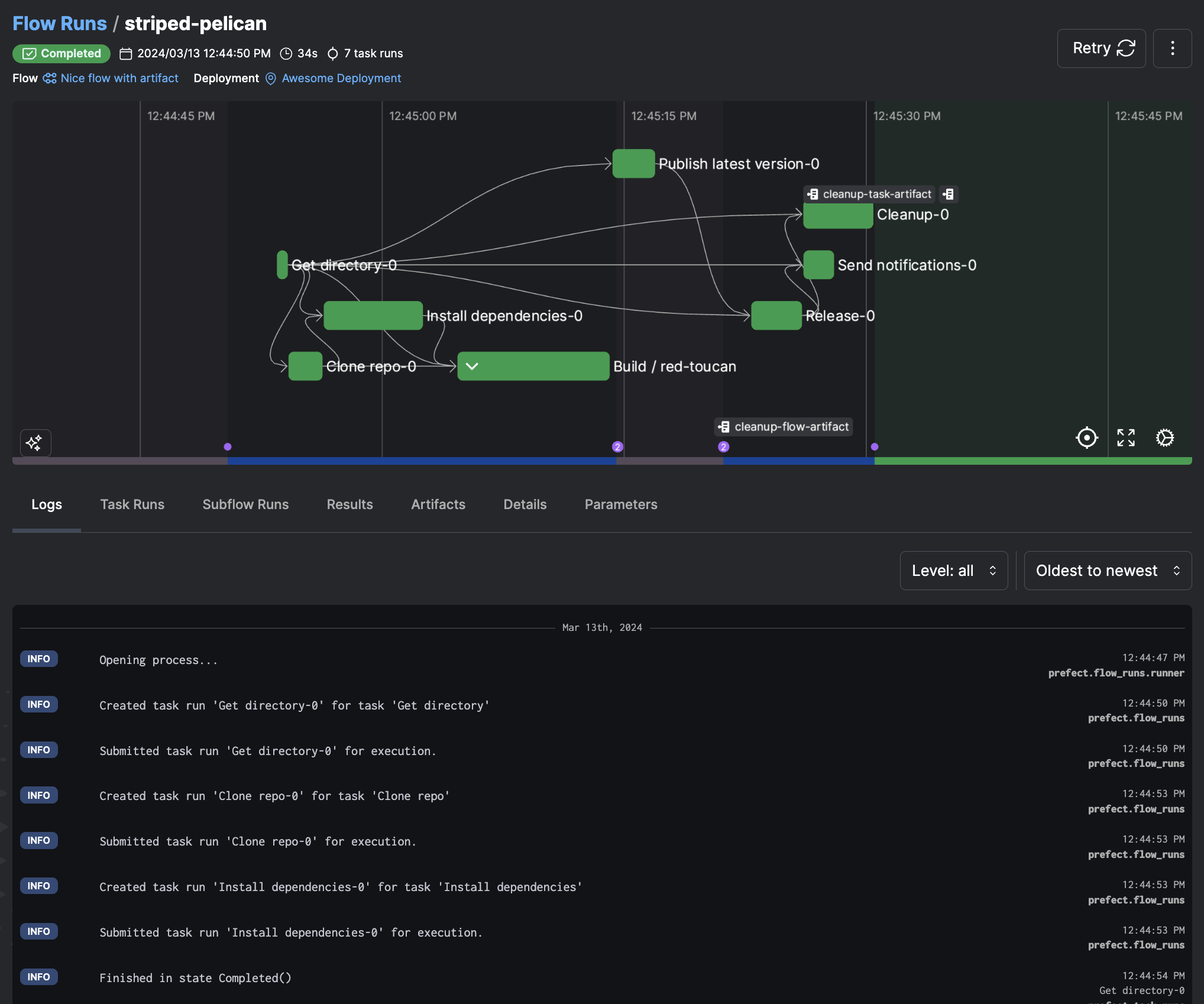
These log messages reflect the logging configuration for log levels and message formatters. Customize the log
levels captured and the default message format through configuration, and capture custom logging events by explicitly
emitting log messages during flow and task runs.
Prefect supports the standard Python logging levels `CRITICAL`, `ERROR`, `WARNING`, `INFO`, and `DEBUG`. By default,
Prefect displays `INFO`-level and above events. Configure the root logging level as well as specific logging levels
for flow and task runs.
## Logging configuration
Prefect provides several settings to configure [logging level and loggers](/3.0rc/develop/logging/).
By default, Prefect displays `INFO`-level and above logging records. Change this level to `DEBUG` and see `DEBUG`-level
logs created by Prefect as well. You may need to change the log level used by loggers from other libraries to see their log records.
Override any logging configuration by setting an environment variable or [Prefect profile](/3.0rc/manage/configure-client/)
setting using the syntax `PREFECT_LOGGING_[PATH]_[TO]_[KEY]`, with `[PATH]_[TO]_[KEY]` corresponding to the nested address
of any setting.
For example, to change the default logging levels for Prefect to `DEBUG`, set the environment variable
`PREFECT_LOGGING_LEVEL="DEBUG"`.
You may also configure the "root" Python logger. The root logger receives logs from all loggers unless they
explicitly opt out by disabling propagation. By default, the root logger is configured to output `WARNING` level logs
to the console. As with other logging settings, you can override this from the environment or in the logging configuration
file. For example, you can change the level with the variable `PREFECT_LOGGING_ROOT_LEVEL`.
You may adjust the log level used by specific handlers. For example, set `PREFECT_LOGGING_HANDLERS_API_LEVEL=ERROR` to have only
`ERROR` logs reported to the Prefect API. The console handlers will still default to level `INFO`.
There is a [`logging.yml`](https://github.com/PrefectHQ/prefect/blob/main/src/prefect/logging/logging.yml) file packaged with
Prefect that defines the default logging configuration.
### Customize logging configuration
Customize logging configuration by creating your own version of `logging.yml` with custom settings, by either creating the file
at the default location (`/.prefect/logging.yml`) or by specifying the path to the file with `PREFECT_LOGGING_SETTINGS_PATH`.
(If the file does not exist at the specified location, Prefect ignores the setting and uses the default configuration.)
See the Python [Logging configuration](https://docs.python.org/3/library/logging.config.html#logging.config.dictConfig)
documentation for more information about the configuration options and syntax used by `logging.yml`.
## Prefect loggers
To access the Prefect logger, import `from prefect.logging import get_run_logger`. You can send messages to the logger in
both flows and tasks.
### Logging in flows
To log from a flow, retrieve a logger instance with `get_run_logger()`, then call the standard Python
[logging methods](https://docs.python.org/3/library/logging.html):
```python
from prefect import flow
from prefect.logging import get_run_logger
@flow(name="log-example-flow")
def logger_flow():
logger = get_run_logger()
logger.info("INFO level log message.")
```
Prefect automatically uses the flow run logger based on the flow context. If you run the code above, Prefect captures the
following as a log event:
```bash
15:35:17.304 | INFO | Flow run 'mottled-marten' - INFO level log message.
```
The default flow run log formatter uses the flow run name for log messages.
Starting in 2.7.11, if you use a logger that sends logs to the API outside of a flow or task run, a warning is
displayed instead of an error. Silence this warning by setting `PREFECT_LOGGING_TO_API_WHEN_MISSING_FLOW=ignore` or
have the logger raise an error by setting the value to `error`.
### Logging in tasks
Logging in tasks works much like logging in flows: retrieve a logger instance with `get_run_logger()`, then call the standard
Python [logging methods](https://docs.python.org/3/library/logging.html).
```python
from prefect import flow, task
from prefect.logging import get_run_logger
@task(name="log-example-task")
def logger_task():
logger = get_run_logger()
logger.info("INFO level log message from a task.")
@flow(name="log-example-flow")
def logger_flow():
logger_task()
```
Prefect automatically uses the task run logger based on the task context. The default task run log formatter uses the
task run name for log messages.
```bash
15:33:47.179 | INFO | Task run 'logger_task-80a1ffd1-0' - INFO level log message from a task.
```
The underlying log model for task runs captures the task name, task run ID, and parent flow run ID, which are
persisted to the database for reporting and custom message formatting.
### Logging print statements
Prefect provides the `log_prints` option to enable the logging of `print` statements at the task or flow level.
When `log_prints=True` for a given task or flow, the Python built-in `print` is patched to redirect to the Prefect
logger for the scope of that task or flow.
By default, tasks and subflows inherit the `log_prints` setting from their parent flow, unless opted out with their
own explicit `log_prints` setting.
```python
from prefect import task, flow
@task
def my_task():
print("we're logging print statements from a task")
@flow(log_prints=True)
def my_flow():
print("we're logging print statements from a flow")
my_task()
```
Outputs:
```bash
15:52:11.244 | INFO | prefect.engine - Created flow run 'emerald-gharial' for flow 'my-flow'
15:52:11.812 | INFO | Flow run 'emerald-gharial' - we're logging print statements from a flow
15:52:11.926 | INFO | Flow run 'emerald-gharial' - Created task run 'my_task-20c6ece6-0' for task 'my_task'
15:52:11.927 | INFO | Flow run 'emerald-gharial' - Executing 'my_task-20c6ece6-0' immediately...
15:52:12.217 | INFO | Task run 'my_task-20c6ece6-0' - we're logging print statements from a task
```
```python
from prefect import task, flow
@task
def my_task(log_prints=False):
print("not logging print statements in this task")
@flow(log_prints=True)
def my_flow():
print("we're logging print statements from a flow")
my_task()
```
Using `log_prints=False` at the task level outputs:
```bash
15:52:11.244 | INFO | prefect.engine - Created flow run 'emerald-gharial' for flow 'my-flow'
15:52:11.812 | INFO | Flow run 'emerald-gharial' - we're logging print statements from a flow
15:52:11.926 | INFO | Flow run 'emerald-gharial' - Created task run 'my_task-20c6ece6-0' for task 'my_task'
15:52:11.927 | INFO | Flow run 'emerald-gharial' - Executing 'my_task-20c6ece6-0' immediately...
not logging print statements in this task
```
Configure this behavior globally for all Prefect flows, tasks, and subflows.
```bash
prefect config set PREFECT_LOGGING_LOG_PRINTS=True
```
## Formatters
Prefect log formatters specify the format of log messages. See details of message formatting for different loggers in
[`logging.yml`](https://github.com/PrefectHQ/prefect/blob/main/src/prefect/logging/logging.yml). For example, the default
formatting for task run log records is:
```python
"%(asctime)s.%(msecs)03d | %(levelname)-7s | Task run %(task_run_name)r - %(message)s"
```
The variables available to interpolate in log messages varies by logger. In addition to the run context, message string,
and any keyword arguments, flow and task run loggers have access to additional variables.
The flow run logger has the following:
* `flow_run_name`
* `flow_run_id`
* `flow_name`
The task run logger has the following:
* `task_run_id`
* `flow_run_id`
* `task_run_name`
* `task_name`
* `flow_run_name`
* `flow_name`
Specify custom formatting by setting an environment variable or by modifying the formatter in a `logging.yml` file as
described earlier. For example, the following changes the formatting for the flow runs formatter:
```bash
PREFECT_LOGGING_FORMATTERS_STANDARD_FLOW_RUN_FMT="%(asctime)s.%(msecs)03d | %(levelname)-7s | %(flow_run_id)s - %(message)s"
```
The resulting messages, using the flow run ID instead of name, look like this:
```bash
10:40:01.211 | INFO | e43a5a80-417a-41c4-a39e-2ef7421ee1fc - Created task run
'othertask-1c085beb-3' for task 'othertask'
```
## Styles
By default, Prefect highlights specific keywords in the console logs with a variety of colors.
Toggle highlighting on/off with the `PREFECT_LOGGING_COLORS` setting:
```bash
PREFECT_LOGGING_COLORS=False
```
Change what gets highlighted and adjust the colors by updating the styles in a `logging.yml` file. List the specific
keys built-in to the `PrefectConsoleHighlighter` as shown below:
URLs:
* `log.web_url`
* `log.local_url`
Log levels:
* `log.info_level`
* `log.warning_level`
* `log.error_level`
* `log.critical_level`
State types:
* `log.pending_state`
* `log.running_state`
* `log.scheduled_state`
* `log.completed_state`
* `log.cancelled_state`
* `log.failed_state`
* `log.crashed_state`
Flow (run) names:
* `log.flow_run_name`
* `log.flow_name`
Task (run) names:
* `log.task_run_name`
* `log.task_name`
Build your own handler with a [custom highlighter](https://rich.readthedocs.io/en/stable/highlighting.html#custom-highlighters).
For example, to additionally highlight emails:
1. Copy and paste the following code into `my_package_or_module.py` (rename as needed) in the same directory as the flow run
script; or ideally as part of a Python package so it's available in `site-packages` and accessible anywhere within your environment.
```python
import logging
from typing import Dict, Union
from rich.highlighter import Highlighter
from prefect.logging.handlers import PrefectConsoleHandler
from prefect.logging.highlighters import PrefectConsoleHighlighter
class CustomConsoleHighlighter(PrefectConsoleHighlighter):
base_style = "log."
highlights = PrefectConsoleHighlighter.highlights + [
# ?P is naming this expression as `email`
r"(?P[\w-]+@([\w-]+\.)+[\w-]+)",
]
class CustomConsoleHandler(PrefectConsoleHandler):
def __init__(
self,
highlighter: Highlighter = CustomConsoleHighlighter,
styles: Dict[str, str] = None,
level: Union[int, str] = logging.NOTSET,
):
super().__init__(highlighter=highlighter, styles=styles, level=level)
```
2. Update `/.prefect/logging.yml` to use `my_package_or_module.CustomConsoleHandler` and additionally reference the
base\_style and named expression: `log.email`.
```yaml
console_flow_runs:
level: 0
class: my_package_or_module.CustomConsoleHandler
formatter: flow_runs
styles:
log.email: magenta
# other styles can be appended here, e.g.
# log.completed_state: green
```
3. On your next flow run, text that looks like an email is highlighted. For example, `my@email.com` is colored in
magenta below:
```python
from prefect import flow
from prefect.logging import get_run_logger
@flow
def log_email_flow():
logger = get_run_logger()
logger.info("my@email.com")
log_email_flow()
```
## Apply markup in logs
To use [Rich's markup](https://rich.readthedocs.io/en/stable/markup.html#console-markup) in Prefect logs, first
configure `PREFECT_LOGGING_MARKUP`:
```bash
PREFECT_LOGGING_MARKUP=True
```
The following will highlight "fancy" in red:
```python
from prefect import flow
from prefect.logging import get_run_logger
@flow
def my_flow():
logger = get_run_logger()
logger.info("This is [bold red]fancy[/]")
my_flow()
```
**Inaccurate logs could result**
If enabled, strings that contain square brackets may be
inaccurately interpreted and lead to incomplete output. For example, `DROP TABLE [dbo].[SomeTable];"` outputs
`DROP TABLE .[SomeTable];`.
## Log database schema
Logged events are also persisted to the Prefect database. A log record includes the following data:
| Column | Description |
| ----------------- | ---------------------------------------------------------------------------------------------------------- |
| id | Primary key ID of the log record. |
| created | Timestamp specifying when the record was created. |
| updated | Timestamp specifying when the record was updated. |
| name | String specifying the name of the logger. |
| level | Integer representation of the logging level. |
| flow\_run\_id | ID of the flow run associated with the log record. If the log record is for a task run, this is the parent |
| flow of the task. | |
| task\_run\_id | ID of the task run associated with the log record. Null if logging a flow run event. |
| message | Log message. |
| timestamp | The client-side timestamp of this logged statement. |
For more information, see [Log schema](/3.0rc/api-ref/server/schemas/core/#prefect.server.schemas.core.Log).
## Include logs from other libraries
By default, Prefect won't capture log statements from libraries that your flows
and tasks use. You can tell Prefect to include logs from these libraries with
the `PREFECT_LOGGING_EXTRA_LOGGERS` setting.
To use this setting, specify one or more Python library names to include,
separated by commas. For example, if you want Prefect to capture Dask
and SciPy logging statements with your flow and task run logs, use:
`PREFECT_LOGGING_EXTRA_LOGGERS=dask,scipy`
Configure this setting as an environment variable or in a profile. See
[Settings](/3.0rc/manage/configure-client/) for more details about how to use settings.