> ## Documentation Index
> Fetch the complete documentation index at: https://prefect-bd373955-pytest-markdown.mintlify.site/llms.txt
> Use this file to discover all available pages before exploring further.
# Create schedules
> Prefect can schedule when to automatically create new flow runs based on your deployments.
Prefect allows you to use schedules to automatically create new flow runs for deployments.
Prefect Cloud can schedule flow runs through event-driven [automations](/3.0rc/automate/events/automations-triggers/).
**Support for multiple schedules**
You can assign multiple schedules to deployments in the Prefect UI, or the CLI with `prefect deployment schedule` commands,
the `Deployment` class, and in
[block-based deployment](/3.0rc/deploy/serve-flows/#block-based-deployments) YAML files.
Support for multiple schedules in `flow.serve`, `flow.deploy`, `serve`, and [worker-based deployments](/3.0rc/deploy/work-pools/control-runs/)
with `prefect deploy` will arrive soon.
Schedules automatically create new flow runs for deployed or served flows.
You can add one or more schedules to any [served or deployed](/3.0rc/deploy/serve-flows/) flow.
Schedules tell the Prefect API when and how to create new flow runs for deployments.
You can add a schedule to a deployment in the Prefect UI, in the CLI through the `prefect deployment schedule` command, or the `prefect.yaml` configuration file.
## Schedule types
Prefect supports three types of schedules:
* [`Cron`](#cron) is most appropriate for users who are already familiar with `cron` from previous use.
* [`Interval`](#interval) is best suited for deployments that run at some consistent cadence that isn't related to absolute time.
* [`RRule`](#rrule) is best suited for deployments that rely on calendar logic for simple recurring schedules, irregular intervals, exclusions,
or day-of-month adjustments.
**Schedules can be inactive**
When you create or edit a schedule, you can set the `active` property to `False` in Python (or `false` in a YAML file) to
deactivate the schedule.
This is useful to keep the schedule configuration but temporarily stop the schedule from creating new flow runs.
### Cron
You can specify a schedule with a [`cron`](https://en.wikipedia.org/wiki/Cron) pattern. You may also provide a timezone to
enforce DST behaviors.
Prefect uses [`croniter`](https://github.com/kiorky/croniter) to specify datetime iteration with a `cron`-like format.
`Cron` properties include:
| Property | Description |
| -------- | ---------------------------------------------------------------------------------------------------------------------- |
| cron | A valid `cron` string. (Required) |
| day\_or | Boolean indicating how `croniter` handles `day` and `day_of_week` entries. Default is `True`. |
| timezone | String name of a time zone. (See the [IANA Time Zone Database](https://www.iana.org/time-zones) for valid time zones.) |
#### How the `day_or` property works
The `day_or` property defaults to `True`, matching the behavior of `cron`.
In this mode, if you specify a `day` (of the month)
entry and a `day_of_week` entry, the schedule runs a flow on both the specified day of the month *and* on the specified day of the
week.
The "or" in `day_or` refers to the two entries treated like an `OR` statement. The schedule should include
both, as in the SQL statement `SELECT * FROM employees WHERE first_name = 'Xiāng' OR last_name = 'Brookins';`.
For example, with `day_or` set to `True`, the cron schedule `* * 3 1 2` runs a flow every minute on the third day of the month
and on Tuesday (the second day of the week) in January (the first month of the year).
With `day_or` set to `False`, the `day` (of the month) and `day_of_week` entries are joined with the more restrictive `AND`
operation, as in the SQL statement `SELECT * from employees WHERE first_name = 'Andrew' AND last_name = 'Brookins';`.
For example, the same schedule, when `day_or` is `False`, runs a flow on every minute on the **3rd Tuesday** in January.
This behavior matches `fcron` instead of `cron`.
**Supported `croniter` features**
While Prefect supports most features of `croniter` for creating `cron`-like schedules, we do not support "R"
random or "H" hashed keyword expressions or the schedule jittering possible with those expressions.
**Daylight saving time considerations**
If the `timezone` is a DST-observing one, then the schedule adjusts itself appropriately.
The `cron` rules for DST are based on schedule times, not intervals. This means that an hourly `cron` schedule fires on
every new schedule hour, not every elapsed hour.
For example, when clocks are set back, this results in a two-hour pause as the schedule will fire *the first time* 1am is
reached and *the first time* 2am is reached, 120 minutes later.
Longer schedules, such as one that fires at 9am every morning, adjust for DST automatically.
### Interval
An `Interval` schedule creates new flow runs on a regular interval measured in seconds. Intervals are computed using an optional
`anchor_date`. For example, this is how you create a schedule for every 10 minutes in a
[block-based deployment](/3.0rc/deploy/serve-flows/#block-based-deployments) YAML file:
```yaml
schedule:
interval: 600
timezone: America/Chicago
```
`Interval` properties include:
| Property | Description |
| ------------ | ---------------------------------------------------------------------------------------------------------------------------------------------------------------------------------- |
| interval | `datetime.timedelta` indicating the time between flow runs. (Required) |
| anchor\_date | `datetime.datetime` indicating the starting or "anchor" date to begin the schedule. If no `anchor_date` is supplied, the current UTC time is used. |
| timezone | String name of a time zone, used to enforce localization behaviors like DST boundaries. (See the [IANA Time Zone Database](https://www.iana.org/time-zones) for valid time zones.) |
The `anchor_date` does not indicate a "start time" for the schedule, but a fixed point to
compute intervals.
If the anchor date is in the future, then schedule dates are computed by subtracting the `interval` from it.
In this example, you import the [Pendulum](https://pendulum.eustace.io/) Python package for easy datetime manipulation.
Pendulum isn’t required, but it’s a useful tool for specifying dates.
**Daylight saving time considerations**
If the schedule's `anchor_date` or `timezone` are provided with a DST-observing timezone, then the schedule adjusts itself
appropriately.
Intervals greater than 24 hours will follow DST conventions, while intervals of less than 24 hours will follow UTC intervals.
For example, an hourly schedule will fire every UTC hour, even across DST boundaries. When clocks are set back, this results
in two runs that *appear* to be scheduled for 1am local time, even though they are an hour apart in UTC time.
For longer intervals, like a daily schedule, the interval schedule adjusts for DST boundaries so that the clock-hour remains
constant.
This means that a daily schedule that always fires at 9am will observe DST and continue to fire at 9am in the local time zone.
### RRule
An `RRule` scheduling supports [iCal recurrence rules](https://icalendar.org/iCalendar-RFC-5545/3-8-5-3-recurrence-rule.html)
(RRules), which provide convenient syntax for creating repetitive schedules. Schedules can repeat on a frequency from
yearly down to every minute.
`RRule` uses the [dateutil rrule](https://dateutil.readthedocs.io/en/stable/rrule.html) module to specify iCal recurrence rules.
RRules are appropriate for any kind of calendar-date manipulation, including simple repetition, irregular intervals, exclusions,
week day or day-of-month adjustments, and more. RRules can represent complex logic like:
* The last weekday of each month
* The fourth Thursday of November
* Every other day of the week
`RRule` properties include:
| Property | Description |
| -------- | ------------------------------------------------------------------------------------------------------------------------------------------------------------- |
| rrule | String representation of an RRule schedule. See the [`rrulestr` examples](https://dateutil.readthedocs.io/en/stable/rrule.html#rrulestr-examples) for syntax. |
| timezone | String name of a time zone. See the [IANA Time Zone Database](https://www.iana.org/time-zones) for valid time zones. |
You may find it useful to use an RRule string generator such as the [iCalendar.org RRule Tool](https://icalendar.org/rrule-tool.html) to help create valid RRules.
For example, the following RRule schedule in a [block-based deployment](/3.0rc/deploy/serve-flows/#block-based-deployments)
YAML file creates flow runs on Monday, Wednesday, and Friday until July 30, 2024.
```yaml
schedule:
rrule: 'FREQ=WEEKLY;BYDAY=MO,WE,FR;UNTIL=20240730T040000Z'
```
**RRule restrictions**
The max supported character length of an `rrulestr` is 6,500 characters
`COUNT` is not supported. Please use `UNTIL` or the `/deployments/{id}/runs` endpoint to schedule a fixed number of
flow runs.
**Daylight saving time considerations**
As a calendar-oriented standard, `RRules` are sensitive to the initial timezone provided.
A 9am daily schedule with a DST-aware start date maintains a local 9am time through DST boundaries. A 9am daily schedule
with a UTC start date maintains a 9am UTC time.
## Create schedules
There are several ways to create a schedule for a deployment:
* Through the Prefect UI
* With the `cron`, `interval`, or `rrule` parameters if building your deployment with the
[`serve` method](/3.0rc/develop/write-flows/#serving-a-flow) of the `Flow` object or
[the `serve` utility](/3.0rc/develop/write-flows/#serving-multiple-flows-at-once) for managing multiple flows simultaneously
* If using [worker-based deployments](/3.0rc/deploy/work-pools/control-runs/)
* When you define a deployment with `flow.serve` or `flow.deploy`
* Through the interactive `prefect deploy` command
* With the `deployments` -> `schedules` section of the `prefect.yaml` file
### Create schedules in the UI
You can add schedules in the **Schedules** section on a **Deployment** page in the UI.
#### Locate the **Schedules** section
The **Schedules** section appears in the sidebar on the right side of the page on wider displays. On narrower displays,
it appears on the **Details** tab of the page.
#### Add a schedule
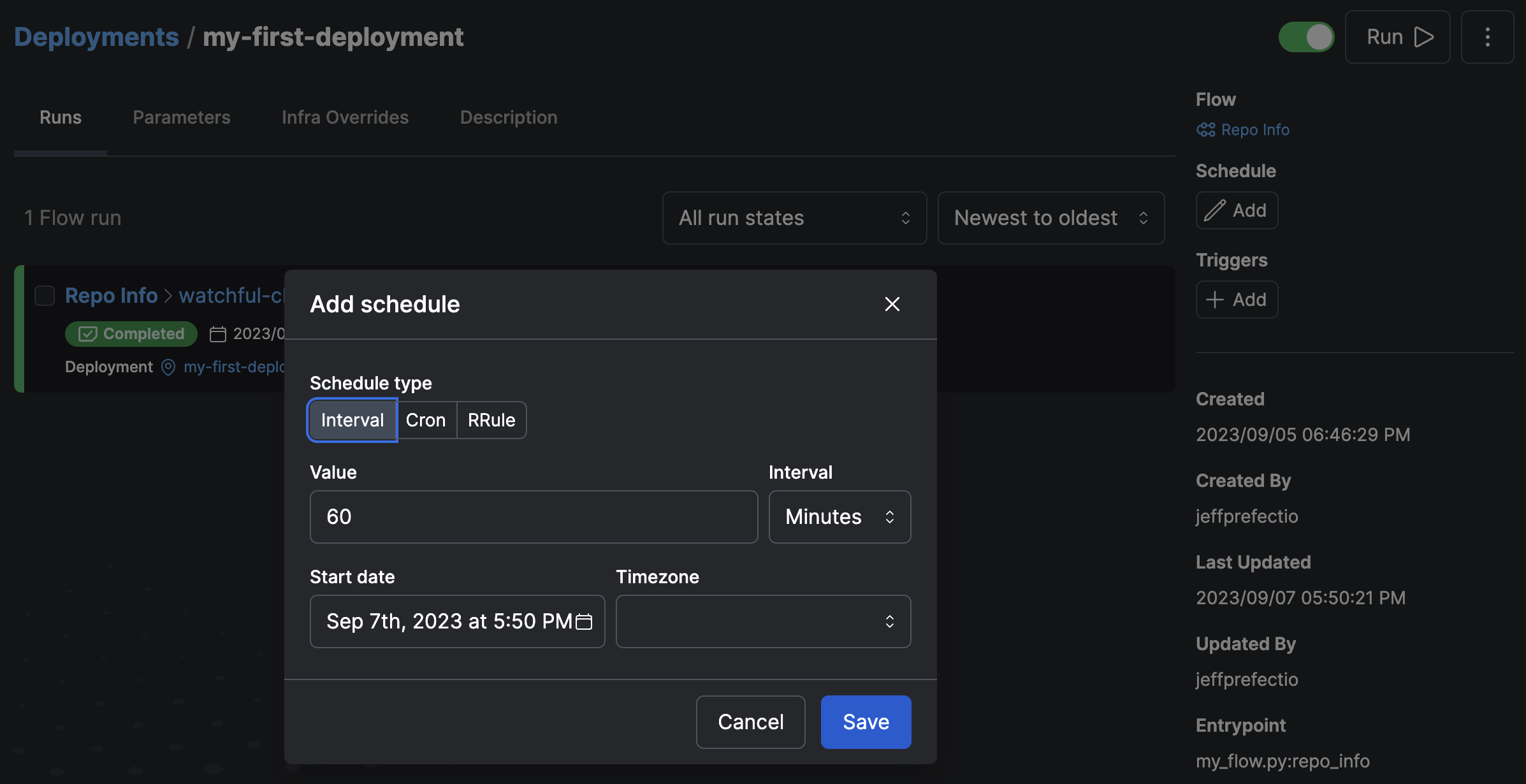
Under **Schedules**, select the **+ Schedule** button. A modal dialog will open. Choose **Interval** or **Cron** to create a schedule.
**What about RRule?**
The UI does not support creating RRule schedules. However, the UI will display RRule schedules that you've created through the
command line.
The new schedule appears on the **Deployment** page where you created it. In addition, the schedule is viewable in
human-friendly text in the list of deployments on the **Deployments** page.
After you create a schedule, new scheduled flow runs are visible in the **Upcoming** tab of the **Deployment** page
where you created it.
#### Edit schedules
Edit a schedule by selecting **Edit** from the three-dot menu next to a schedule on a **Deployment** page.
### Create schedules with a Python deployment creation file
Specify the schedule when you create a deployment in a Python file with `flow.serve()`, `serve`, `flow.deploy()`, or `deploy`.
Just add the keyword argument `cron`, `interval`, or `rrule`.
```
interval: An interval on which to execute the deployment. Accepts a number or a
timedelta object to create a single schedule. If a number is given, it is
interpreted as seconds. Also accepts an iterable of numbers or timedelta to create
multiple schedules.
cron: A cron schedule string of when to execute runs of this deployment.
Also accepts an iterable of cron schedule strings to create multiple schedules.
rrule: An rrule schedule string of when to execute runs of this deployment.
Also accepts an iterable of rrule schedule strings to create multiple schedules.
schedules: A list of schedule objects defining when to execute runs of this deployment.
Used to define multiple schedules or additional scheduling options such as `timezone`.
schedule: A schedule object defining when to execute runs of this deployment. Used to
define additional scheduling options like `timezone`.
```
Here's an example of creating a cron schedule with `serve` for a deployment flow that runs every minute of every day:
```python
my_flow.serve(name="flowing", cron="* * * * *")
```
If using work pool-based deployments, the `deploy` method has the same schedule-based parameters.
When `my_flow` is served with this interval schedule, it will run every 10 minutes beginning at midnight on January, 1, 2024 in the `America/Chicago` timzone:
```python
from datetime import timedelta, datetime
from prefect.client.schemas.schedules import IntervalSchedule
my_flow.serve(name="flowing", schedule=IntervalSchedule(interval=timedelta(minutes=10), anchor_date=datetime(2023, 1, 1, 0, 0),
timezone="America/Chicago"))
```
### Create schedules with the interactive `prefect deploy` command
If you are using [worker-based deployments](/3.0rc/deploy/work-pools/control-runs/), you can create a schedule through the
interactive `prefect deploy` command.
You will be prompted to choose which type of schedule to create.
### Create schedules in the `prefect.yaml` file's `deployments` -> `schedule` section
If you save the `prefect.yaml` file from the `prefect deploy` command, you will see it has a `schedules` section for your deployment.
Alternatively, you can create a `prefect.yaml` file from a recipe or from scratch and add a `schedules` section to it.
```yaml
deployments:
...
schedules:
- cron: "0 0 * * *"
timezone: "America/Chicago"
active: false
- cron: "0 12 * * *"
timezone: "America/New_York"
active: true
- cron: "0 18 * * *"
timezone: "Europe/London"
active: true
```
## The `Scheduler` service
Prefect's `Scheduler` service evaluates each deployment's schedules and creates new runs appropriately. It starts
automatically when `prefect server start` is run and it is a built-in service of Prefect Cloud.
The `Scheduler` creates the fewest runs that satisfy the following constraints, in order:
* No more than 100 runs will be scheduled.
* Runs will not be scheduled more than 100 days in the future.
* At least three runs will be scheduled.
* Runs will be scheduled until at least one hour in the future.
These behaviors are adjustable through the relevant settings with the `prefect config
view --show-defaults` command:
```bash
PREFECT_API_SERVICES_SCHEDULER_DEPLOYMENT_BATCH_SIZE='100'
PREFECT_API_SERVICES_SCHEDULER_ENABLED='True'
PREFECT_API_SERVICES_SCHEDULER_INSERT_BATCH_SIZE='500'
PREFECT_API_SERVICES_SCHEDULER_LOOP_SECONDS='60.0'
PREFECT_API_SERVICES_SCHEDULER_MIN_RUNS='3'
PREFECT_API_SERVICES_SCHEDULER_MAX_RUNS='100'
PREFECT_API_SERVICES_SCHEDULER_MIN_SCHEDULED_TIME='1:00:00'
PREFECT_API_SERVICES_SCHEDULER_MAX_SCHEDULED_TIME='100 days, 0:00:00'
```
See the [Settings docs](/3.0rc/manage/configure-client/) for more information on altering your settings.
These settings mean that if a deployment has an hourly schedule, the default settings will create runs for the next four days
(or 100 hours).
If it has a weekly schedule, the default settings will maintain the next 14 runs (up to 100 days in the future).
**`Scheduler` does not affect execution**
The Prefect `Scheduler` service only creates new flow runs and places them in `Scheduled` states.
It is not involved in flow or task execution.
If you change a schedule, previously scheduled flow runs that have not started are removed, and new scheduled flow runs are
created to reflect the new schedule.
To remove all scheduled runs for a flow deployment, you can remove the schedule.